

Deliver the Answer
Send the table you just built out of Keboola into a Google Sheet using the Google Sheets data destination connector.
Whoever asked how deep octopuses really go will look in a spreadsheet, not in Keboola. This step delivers the 10,000-row atlas to a Google Sheet — the same mechanism that later sends data to a warehouse, a BI tool, or a CRM. Step 4 of the Getting Started arc.
Two ways to do it, in one order: steps 1–6 below are yours either way — the configuration and the Google authorization. After that, pick a tab in Set it up. Doing it with Kai, the run is part of the prompt; doing it yourself, you run it below the tabs. Checking the result is shared.
What you need
Section titled “What you need”- The table
octopus_atlasin Storage, from Transform Data. - A Google account you can authorize.
Sending data out
Section titled “Sending data out”Getting data out is handled by data destination connectors — the mirror image of the data source connectors you loaded with. The pattern is always the same: authorize the target, pick the Storage table, say where it goes, run it. Sending processed data back into the operational systems it came from is often called reverse ETL; in Keboola it is just another component in your flow.
Google Sheets is the easiest destination to try. The full catalogue covers databases, BI tools, and cloud storage.
Configure the destination
Section titled “Configure the destination”-
Open Components and search for
Sheets. Five results come back, and the first two are Google Sheets — Data Source and Google Sheets — Data Destination: near-identical names, opposite jobs. Pick the Data Destination one (component IDkeboola.wr-google-sheets). Picking the data source by mistake makes the rest of this page impossible.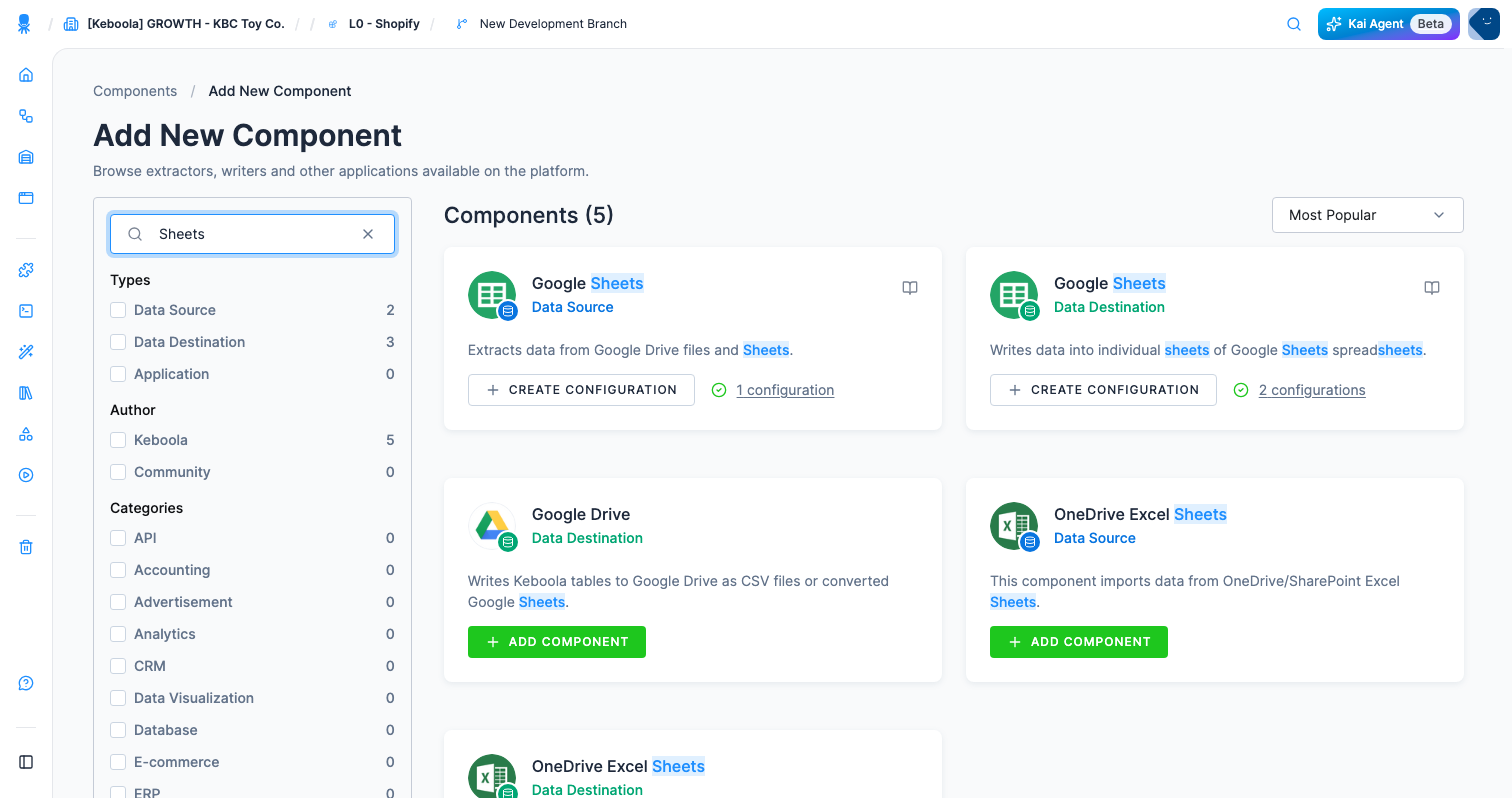
-
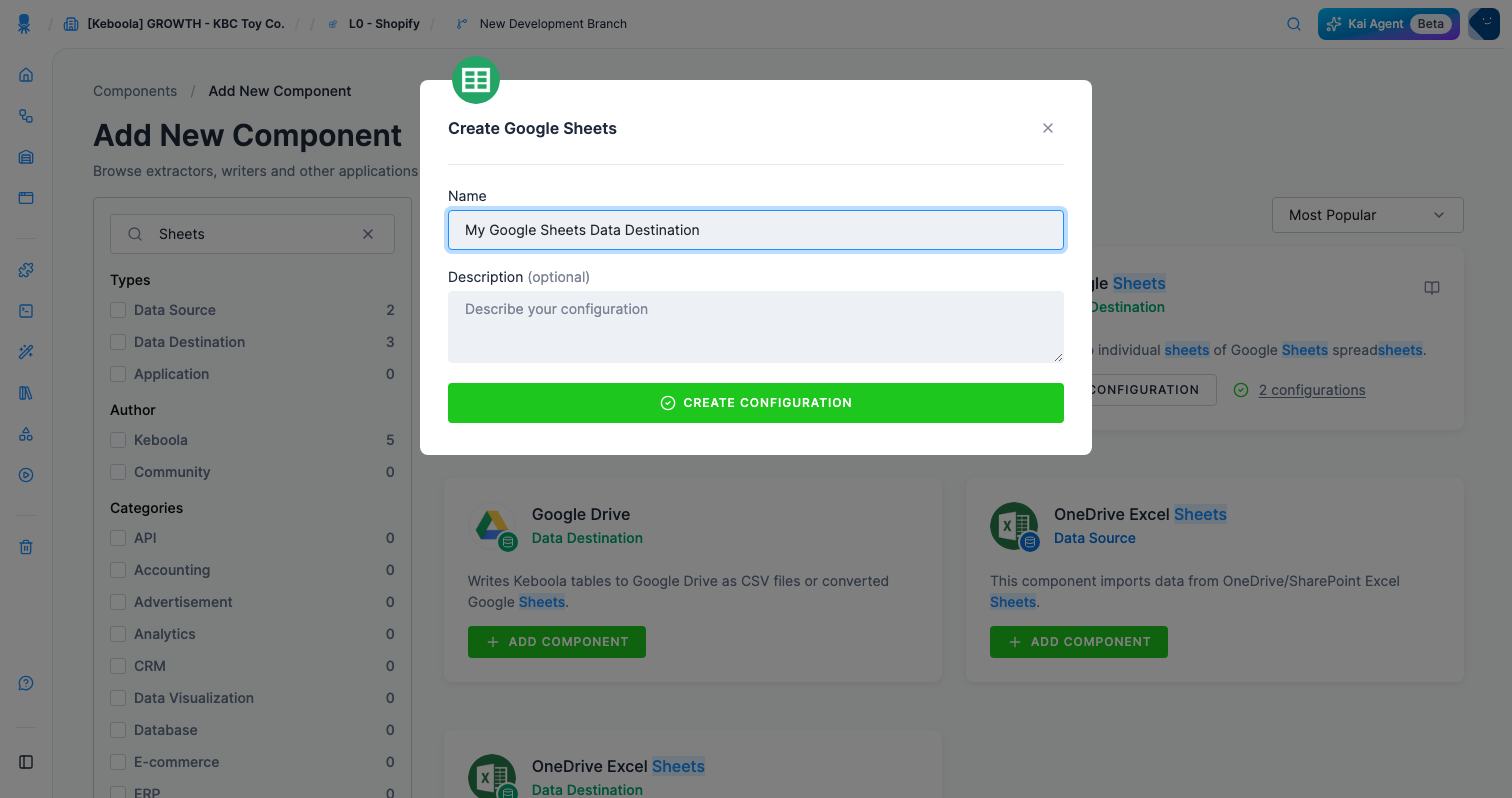
Click Add Component (Create Configuration on the card once the component already has configurations), then Connect To My Data — the only button here, unlike the HTTP connector in step 2, which also offered demo data.
-
Name the configuration
[TUTORIAL] Octopus atlas to Sheets, add a description, and click Create Configuration.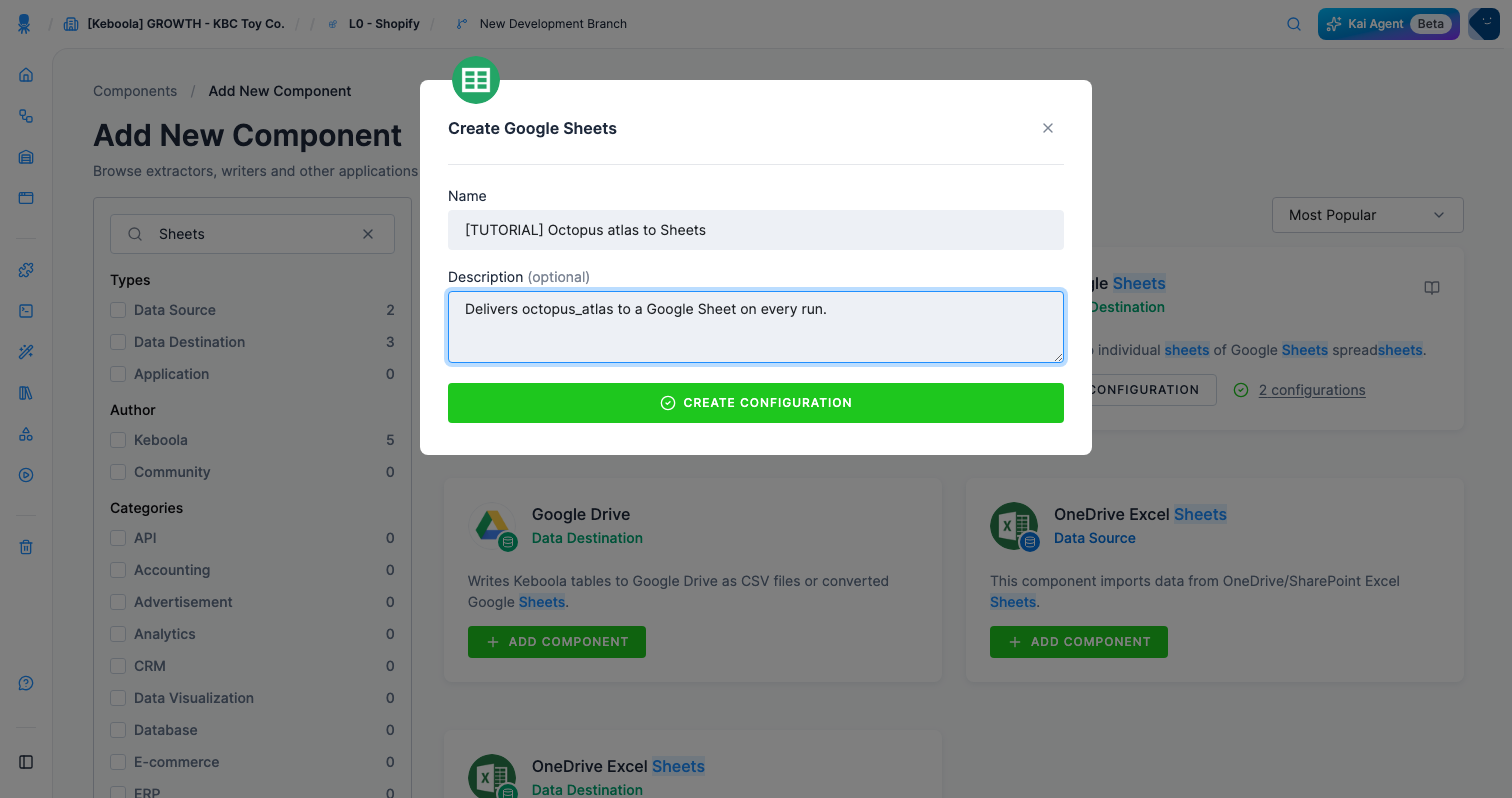
Authorize your Google account
Section titled “Authorize your Google account”-
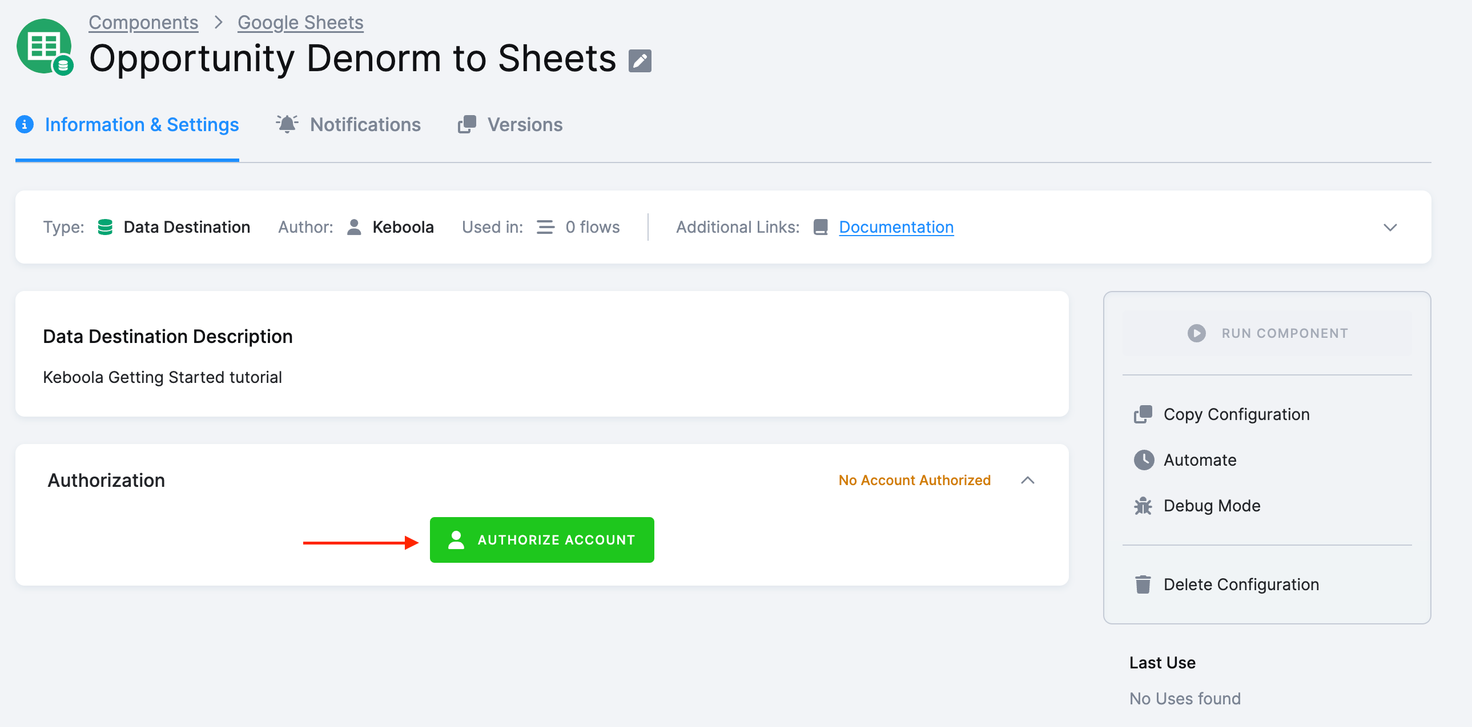
Authorize the account you want to write into.
-
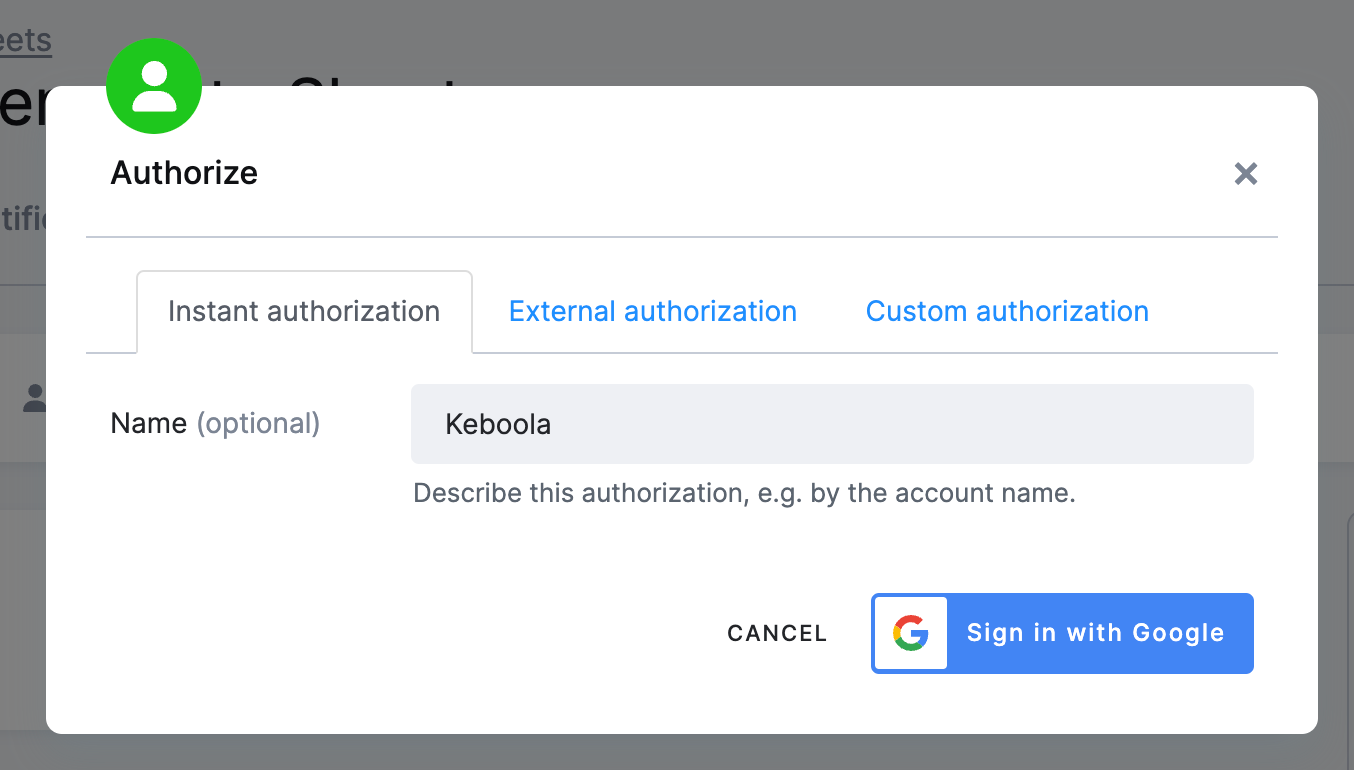
Name the authorization and click Sign in with Google. Use external authorization instead if a colleague — not you — owns the target account; Keboola sends them a link and never sees their credentials.
-
Click Allow.
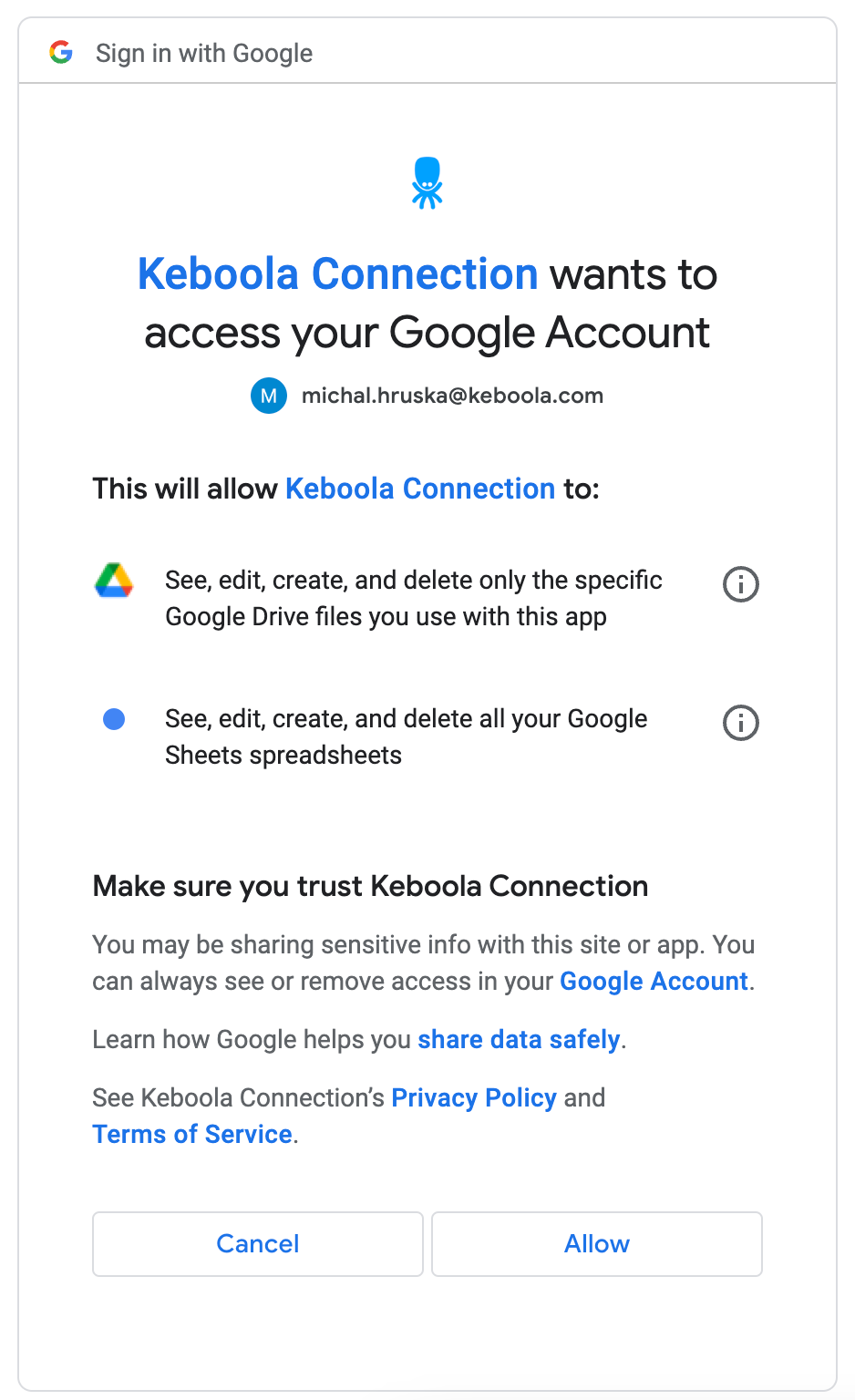
The authorization belongs to this configuration. Keboola stores component secrets as encrypted configuration parameters — there is no decryption API, so the credentials are never readable back out of the configuration.
Set it up
Section titled “Set it up”Kai configures data destinations as well as data sources. The configuration and the authorization above are yours either way — that consent screen is in your own Google account, not something an assistant can click through. Everything after it, Kai can do: open Kai Agent in the top bar and hand it over.
In my "[TUTORIAL] Octopus atlas to Sheets" configuration, writeout.c-octopus-atlas.octopus_atlas to a new spreadsheet called"[TUTORIAL] Octopus atlas", into a sheet named octopus_atlas, set to update rows ratherthan append. Then run it.Naming all three matters: step 5 puts this on a daily schedule, so an appending sheet grows by 10,000 rows a day, and the check at the end of this tab looks for that spreadsheet name. The whole exchange, condensed to twenty seconds:
Check: the sheet holds every row of octopus_atlas, joined columns included, exactly as
in Run it and check the result. If it does not, switch to the
Do it yourself tab and edit the sheet Kai created — its spreadsheet and sheet settings, steps 9
and 10 — since everything Kai set is editable there.
Pick the table and the sheet
-
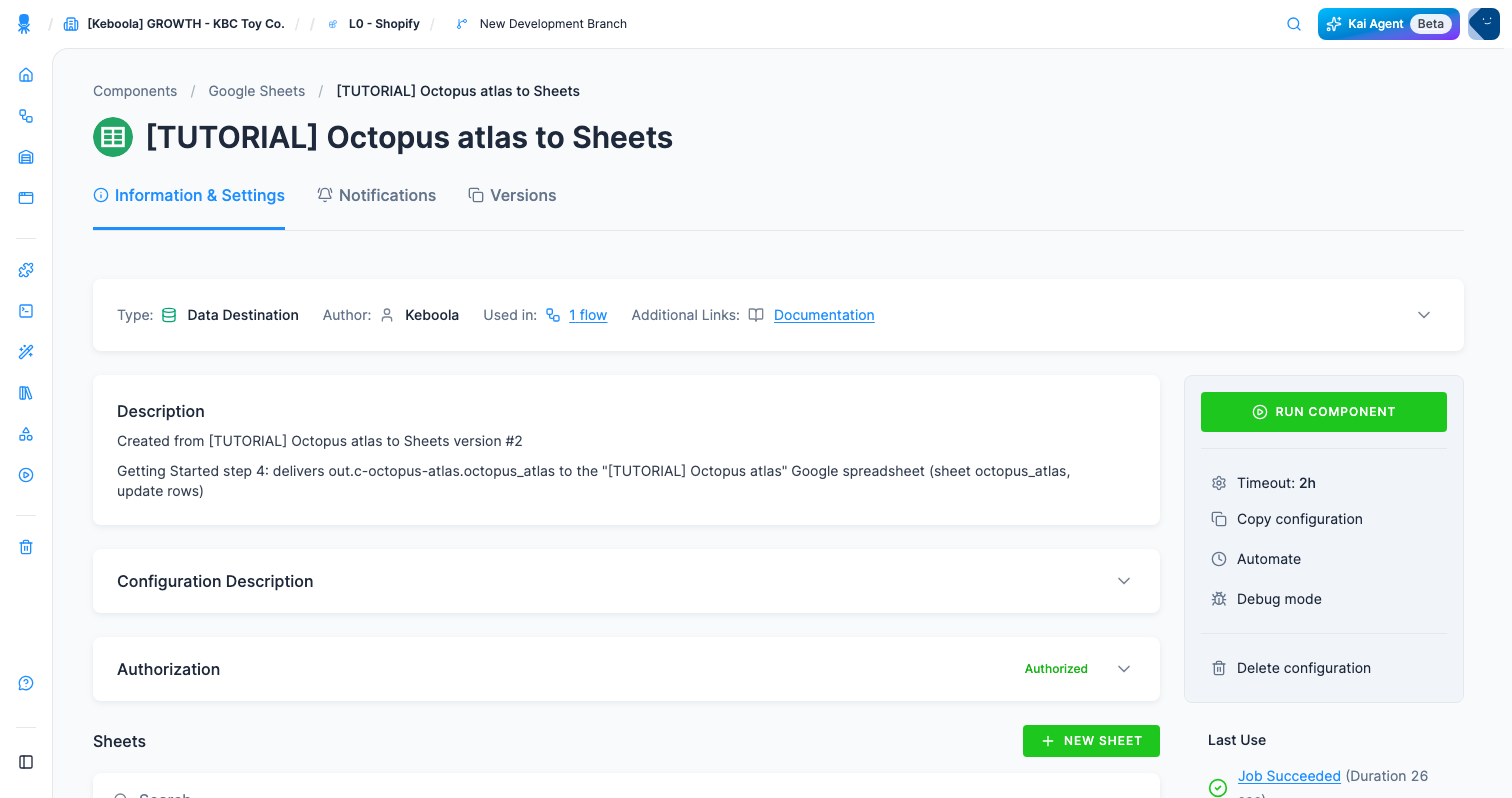
Click New Sheet.
-
The Add Sheet wizard opens — three short steps you move through with Next. On the first, pick
out.c-octopus-atlas.octopus_atlasas the Input Table and click Next. (The list hides tables this configuration already writes; an empty configuration offers everything in Storage.) -
On the spreadsheet step, choose New spreadsheet and name the spreadsheet — the file that will appear in Drive. Use
[TUTORIAL] Octopus atlas. An existing spreadsheet works too; you pick it from the authorized account’s Drive. Click Next. -
On the last step, name the sheet — the tab inside that file —
octopus_atlas, select Update rows, and click Save Sheet. This creates the empty spreadsheet in the authorized account, ready to receive data.Update rows replaces the sheet’s contents on every run. The alternative appends to the bottom instead — right for a log, wrong for a table you want to reflect current state.
Run it and check the result
Section titled “Run it and check the result”Coming from the Kai tab? The run already happened — the prompt asked for it. Start at step 12.
-
Click Run Component.
-
When the job finishes, click the spreadsheet name —
[TUTORIAL] Octopus atlas— to open it in Google Drive.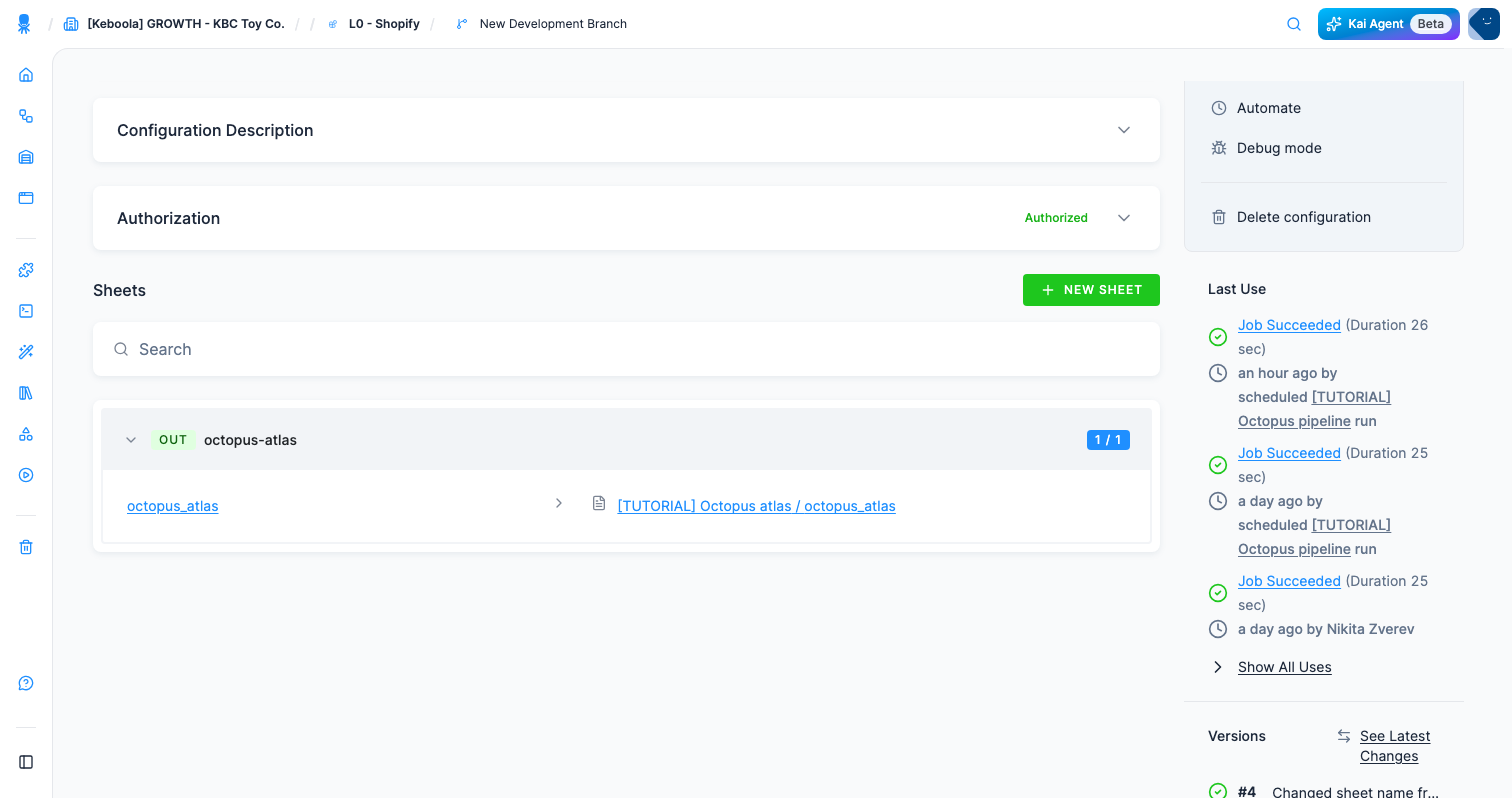
The sheet should hold every row of octopus_atlas, with the joined columns —
display_name, depth_zone, basin — that did not exist in any of the four CSVs you started
with. Sort it by depth_m descending and Grimpoteuthis challengeri — a dumbo octopus, though the
data only knows its Latin name — sits at the top, 4,838 meters down. That is the whole
pipeline, end to end.
If it goes wrong
Section titled “If it goes wrong”- The job fails with a permission error. The authorization expired or was revoked in the Google account. Re-authorize the configuration; the sheet selection survives.
- The spreadsheet stays empty. The table was saved in the configuration but the component has not run since — click Run Component. If it did run, check in Jobs whether the source table had any rows.
- Only some columns arrive. The sheet was created against an older version of the table. Delete the sheet from the configuration and add it again so the column list is rebuilt.
- You cannot open the spreadsheet. It lives in the authorized Google account, not yours — if you authorized a colleague’s account, ask them to share it.
- You want the delivery checked against the source. Kai can read both sides:
Read the last Google Sheets destination job, tell me whether it succeeded, and compare what it wrote with the row count of out.c-octopus-atlas.octopus_atlas.